Epigraf is built to exploit unstructured text and objects with structured vocabularies. The vocabularies are called properties (from the perspective of the data model) or categories (from the perspective of the web interface), and they can be accessed via the categories menu item. Categories are organised as category systems, which are listed in the left sidebar. Each category system corresponds to a property type as configured by administrators.
Categories can be arranged as flat lists or as trees. In a tree, categories form a hierarchy, each category can have one or more child categories.
For mapping arbitrary network structures (or knowledge graphs), there are two types of categories:
- Nodes contain a labeled category to be used for tagging and annotating article content.
- Edges are all categories that link to another category using the related field. This establishes a relationship between the respective parent category and the target category. The relationship can be further qualified by three mechanisms: a) Name the edge using the lemma field, for example as "see also" or as "husband of". b) Use standardized identifiers (e.g. skos:member, skos:broader, skos:narrower, skos:related) in the norm_iri field. c) Use a meta-property to categorize the category.
Whether your category system is a simple flat list, is organised as a tree, or even allows cross-references depends on the the specific database configuration.
Edit categories
In the footer of the categories page, you will find a button for creating new categories. Categories always have a fixed order. New categories are placed in a specific position when they are created. Thus, before adding a new category, select a preceding category (or a parent category, if the category system is a tree). Categories can be moved to other positions at any later time. If necessary, an alphabetical order can be created using the mutate function, located in the footer.
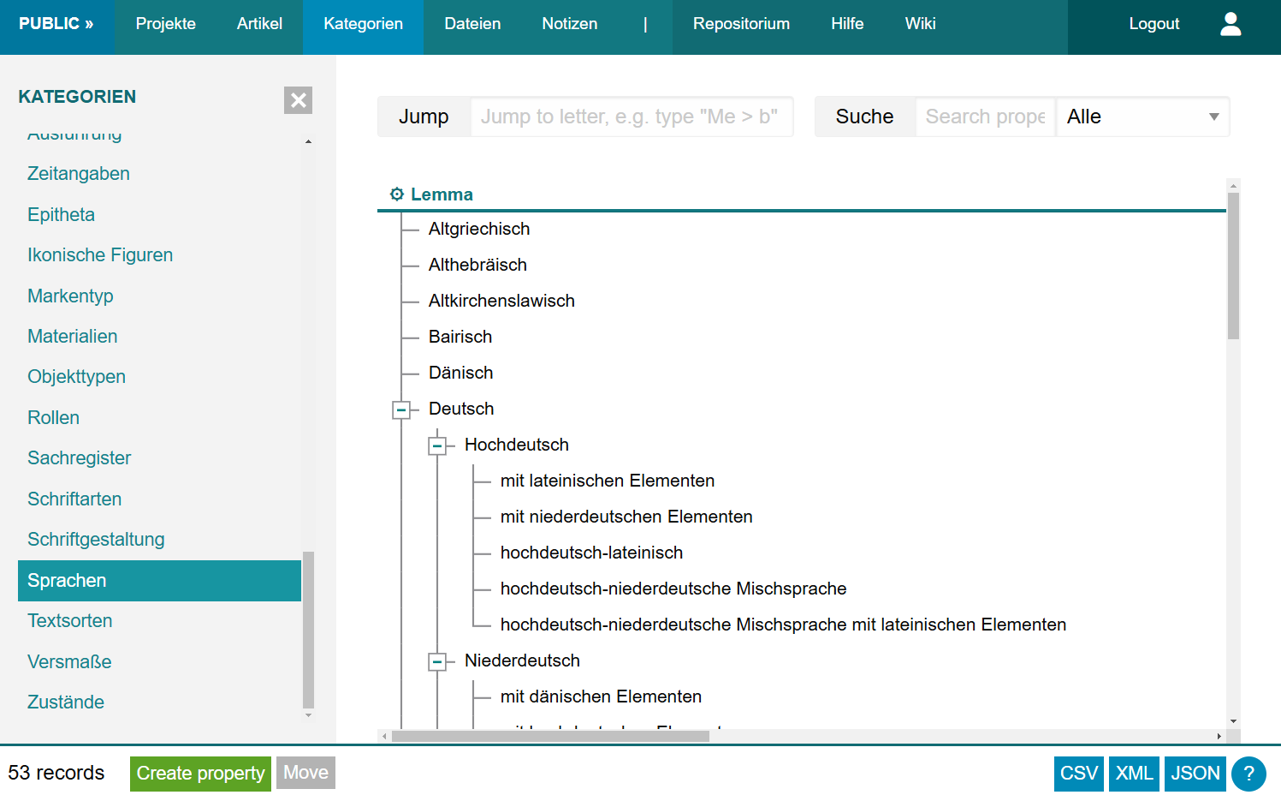
To edit a category, click on it in the list so that its details and an edit button appear in the sidebar. For going through many categories, you can switch to the revise mode using the button in the footer. This way, categories will always open in edit mode. Hover over the buttons to see the keyboard shortcuts, they might be handy.
The following fields are essential when editing categories. Note that, based on the database configuration, not all fields may be accessible in a specific category system and they may have different labels.
- Parent category: Only used in category systems that are organised as a tree. Select the parent category or leave it empty for root categories. Example: "German".
- Lemma: Inspired by lexicography, we call the label of a category 'lemma'. Administrators may change this terminology in the user interface. Example: "with Latin elements".
- Name: Depending on the configuration, you may find a second field for labeling the category. The name field is usually used for a flat label that is understandable even without the hierarchical structure. Example: "German with Latin elements".
- Sort key: Although categories always have a fixed position, it is advised to store a value that can be used to reproduce the order. For alphabetic vocabularies, the sort key should be the lemma. If the lemma contains numbers (e.g. a street adress), prepend zeros to the number so that every number has the same length. Filling up numbers to a fixed number of digits makes sure they can be sorted alphabetically. Depending on the configuration, a sort key may be automatically created when creating a new category.
- Related category: Only used in category systems that allow cross-references. If you select a target category, this changed the interpretation of the current category: Now it is an edge between the parent node and the target node.
- IRI fragment: The IRI field is particularly important: it uniquely identifies entities worldwide, allowing categories to be exchanged and synchronized between multiple databases. You can leave this field empty to automatically use database IDs as IRIs.
Navigate the categories
Categories are used, for example, to maintain a list of genres, people, or locations. Those lists are the basis for tagging and annotating articles.
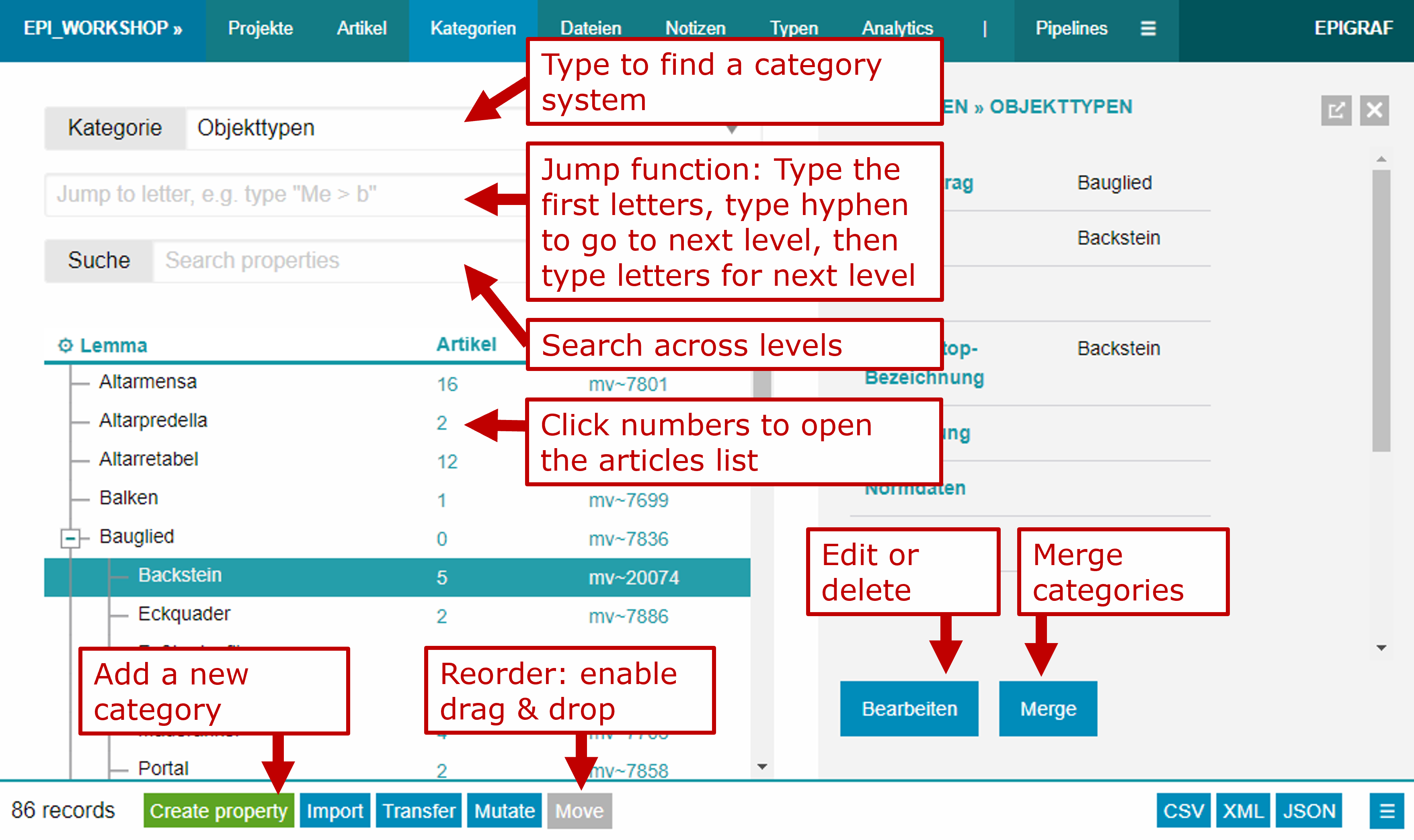
There are two ways to find categories:
Jump: Start typing the first few letters of a category into the input field to jump to that category in the list. In hierarchical trees, only the first level is jumped to initially. To dive into the next level, enter the minus sign - followed by the first few letters of the subordinate category as a separator. For example, to jump to the category "Wismar > Town Hall", you can enter wi - to. You can use the asterisk * as a placeholder: To jump to the first category containing "hall" regardless of the
initial letters, enter *hall.
Search: The search field can be used to find categories containing the search term. The search covers lemma, name, keywords, authority data, IRIs, and IDs. Specific search fields can be selected by the dropdown button next to the search field. For tree-based category systems, the ancestor categories of search results are always returned.
If you enter several terms separated by space, each term must be matched by a property (boolean AND condition). If you want to search for the entire search text, enclose it in double quotation marks. Example: The search text silk on returns 'silk on linen' and 'silk embroidery on linen'. The search text "silk on" (in quotation marks) only returns 'silk on linen'. If quotation marks are to be included in the search term, they must be masked with \. Alternatively, you can also search for the entire term by masking the space with \ instead of using quotation marks. Example: silk\ on.
Hints:
- As a separator for navigating trees, you can use the greater-than sign
>or the tilde~instead of the minus sign-. - When editing articles, categories are selected from dropdown menus and popups. The jump function is enabled by default. Switch to the search function by prefixing the term with two asterisks. For example, enter
**houseto find all categories that contain "house", regardless of their level in the hierarchy.
Batch processing
Batch processing enables you to reorganise the entire category system. These functions can be accessed via the Mutate button in the footer:
- Sort properties: The categories are sorted, whereby lemma, name, or sortkey can be selected as alphabetical sort fields. This function always covers the entire category system, not just the selected categories. Sorting is always performed within a single level, meaning that the hierarchy of the entries remains intact.
- Rebuild sort keys: The sort keys of the selected categories are recreated. Depending on the configuration of the category system, they are derived from the lemma or name field. The values are preprocessed: spaces at the beginning and end are removed (trimming), multiple spaces are merged into one, and all numbers are filled with leading zeros up to five digits.
- Merge properties: All selected categories with the same path are merged. The path consists of the lemma and, in hierarchical trees, all parent lemmas.
- Reconcile properties: Reconciliation is the process of retrieving authority data identifiers based on search terms from external services. This requires configuring a reconciliation service (e.g. Wikidata or AAT) for the category system. Depending on the selection, either the lemma or the name field is used for the search, and the first matching result is added to the norm_data field. Since automatic reconciliation can result in misassignments, the result should always be checked manually.
A category system can become corrupted, for example, due to canceled import or merge operations. To fix the hierarchy of a category system, sort it using batch processing by the Tree order field. This field contains the last known order (it is the lft field in the properties table which stored the hierarchy according the principle of modified preorder tree traversal).