The user interface
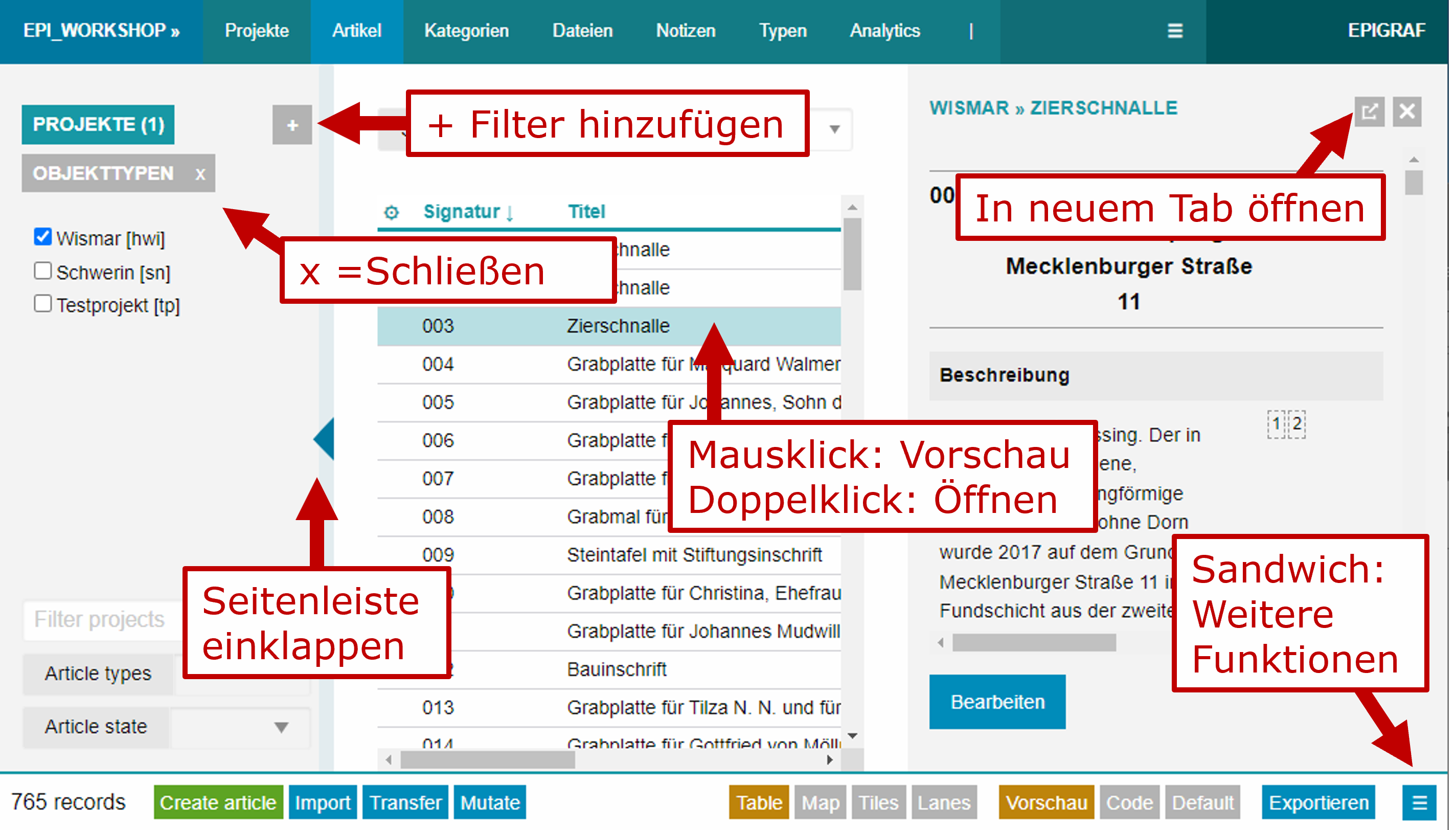
The main entry page when working with Epigraf is the articles table. It lists the collection of all articles, optionally filtered by project, categories and full text search. The article collection, depending on the configuration of your database, can be displayed in alternative layouts. Use the buttons in the footer to switch the layout:
- Table: Articles are listed in a table. The columns are configured in the database types. Click the settings icon in the top left corner of the table to change the column selection. You can change the column order by dragging and dropping them the drop-down menu.
- Map: All items containing geographic coordinates are displayed on a map. Coordinates can originate directly from the articles or from categories (e.g. a location list) used in the articles.
- Tiles: The tile view displays each article as a tile containing an image (if available) and selected content. Tiles can be arranged in rows or lanes. Each row corresponds to a category selected in the filter facets of the left sidebar. To activate the lanes view, add a facet using the plus button, select at least one category, and check the details checkbox.
Table views are used throughout Epigraf for all kinds of entity collections such as projects or categories. A single mouse click on a row usually opens the entity in the right sidebar. Double-clicking opens the entity in the same window. Ctrl+click a row to open the entity in a new window. You will find buttons in the sidebar and in popups that also open entities in a new tabsheet.
Single articles can be opened in two modes. This applies to all other entities such as projects or categories as well:
- The view mode is read-only. This is the default mode when an article is opened in the sidebar. It may deviate from the real data structure of an article since sections and fields may be rearranged or toggled for presentation purposes using a specific database configuration.
- The edit mode is used to change article data. An article goes into edit mode by double-clicking on a table row or using the open button in the sidebar.
For quickly revising articles (or properties) from the table view,
you can switch to the Revise mode using the respective footer button.
This results in articles being opened in edit mode instead of view mode in the sidebar.
The article layout may deviate from the usual edit mode, if a specific configuration for revising entities exists in the database.
Throughout the application, some standard functions are implemented: - Plus buttons (+) are used for adding sections or items to an article as well as filter facets in the table view. - Cross buttons (x) close sidebars or popups. - Minus buttons remove items within an article.
Note that sidebars (and columns) can be resized or collapsed using the mouse.
Editing in a team
Epigraf allows multiple users to work on the same database. To avoid conflicts, entities are locked for other users while they are being edited. You can see this if you open an entity in two different browser windows at the same time: Only one window can be in edit mode and the other remains locked. You will be notified that the entity is already being edited. Once it has been released by saving or cancelling you can edit it in another window.
Make sure that you explicitly close the editing mode when you finish or pause working on an entity. This is done with the corresponding button or shortcut. If you try to exit the window while an entity is still in edit mode, the browser will notify you. You should never just close the browser window as long as you are in editing mode because it leaves the entity in a locked state. Instead, explicitly close the entity by saving or canceling.
In general, you do not need to think about locks any further. Epigraf will manage locking for you. Nevertheless, it can be helpful to be aware of the following special situations:
- Each entity lock is maintained as long as the window is active. If the computer is switched off or the window is closed without saving or canceling, the lock expires after one minute at the latest. If someone else has opened the entity for editing in the meantime, it cannot be saved again until the other person has closed the entity. This may result in a race condition: Changes made by the other person in the meantime are overwritten with the changes of the open entity. Therefore, entities should be deliberately closed if you take a break.
- If an entity is open for editing in the sidebar, you can use the top right button to open it in a new tab sheet. The entity is automatically closed without saving and reopened in the new tab sheet. Changes should be saved beforehand.
- If an entity is open for editing in the sidebar, it is automatically closed without saving once another entity is selected in the table. You should save changes beforehand.
- Locks are synchronized between EpiWeb and EpiDesktop. This allows you to work on the data in parallel with both applications. However, locks do not expire automatically when working with EpiDesktop. If the computer is put into standby mode during editing or Epigraf is closed without leaving edit mode, entities may remain locked. Such non-expiring locks can be removed by administrators using EpiDesktop.