Articles are the starting point for data collection and analysis with Epigraf. The definition of an article depends on the use case. In epigraphy, for example, an article contains a description of an object and its inscriptions. In the case of a letter edition, each letter constitutes an article. For social media analysis, it makes sense to think of an article as a post or a thread consisting of a post and its associated comments. Thus, an article contains a description of the research object.
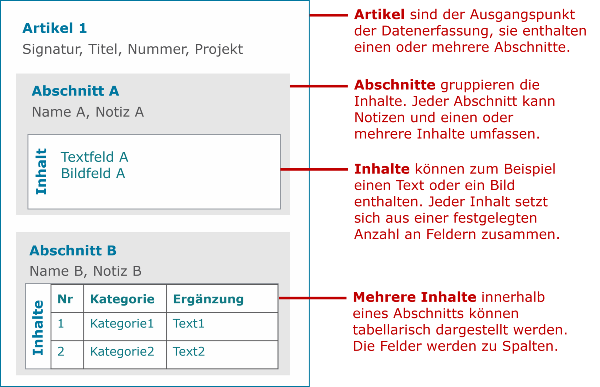
Each article is made up of sections that can be flexibly combined. Sections contain the text and all relevant metadata and associated files in their items. Items include text, images and references to categories. In text fields, annotations can be used to format text and to text segments to categories. Footnotes are a special type of annotation containing comments on a text segment.
Articles and all associated data can either be imported from external files, transferred from other databases, or created and edited directly in the user interface.
Navigating articles
Text search
The search field above the article list searches identifiers, the articles' title and status fields, and the fulltext index. Select the scope in the dropdown menu next to the search input.
Multiple search terms are separated by space. By default, the result contains all articles that match each of the terms (boolean AND condition). Use a vertical bar (the pipe |) to find all articles that match at least one of the terms (boolean OR condition).
If you combine these two patterns, the OR conditions are evaluated first, followed by the AND conditions (AND binds stronger).
Example: The search pattern "gratia plena | gracia plena" finds all articles that contain both gratia and plena (first AND condition) or both gracia and plena (second AND condition).
To search text containing whitespace, use quotation marks around the search term.
Filter options
In the left sidebar, the list of articles can be filtered by project, article type, or publication status. You can combine it with the text search or facet search.
Facets
The plus button in the left sidebar adds a category system as a facet. Facets only contain the categories that match the other search and filter criteria. Therefore, facets play a double role: They help to find specific articles and at the same time they provide an overview about the categories prevalent in selected articles. This feature is particularly handy when multiple category systems are used as facets. As an example, you could select all thumb stones in one facet and then inspect the font types of the thumb stones in a second facet.
Next to each category you see the number of articles that match the category. Note that multiple categories may appear in an article. Therefore, the number of results in the article list does not always correspond to the sum in the category tree.
Category systems may grow large and contain, for example, thousands of persons. Below each facet you find an input field to search categories.
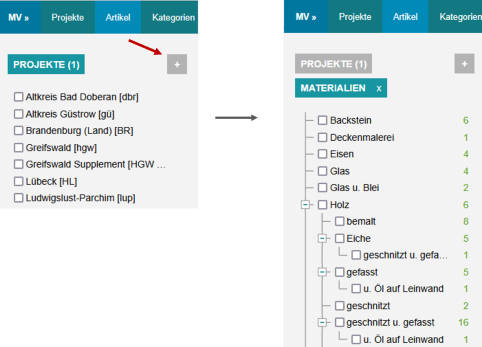
For the visible facet, you can select further options: - Select all results in all articles that have any of the categories. In this case, selecting single categories as well the Include descendants checkbox have no effect. - Invert selection results in all articles not matching the selected categories. If no category is selected, the result list will always be empty. In combination with Select all this results in all articles that have none of the categories. - Include descendants extends the selection to all child categories of checked categories.
Examples:
- Show all articles that refer to the material Wood: Activate the Wood checkbox.
- Show all articles that refer to the material Wood or any of its child categories: Activate the checkbox Wood; activate the checkbox Include descendants.
- Show all articles that refer to any material: Activate the Select all checkbox.
- Show all items that do not refer to any material: Select the Select all checkbox and select the Invert selection checkbox.
- Show all items that do not refer to the material Wood: Activate the Wood checkbox and activate the Invert selection checkbox.
- Show all articles that do not refer to the material Wood or any of its children: Select the checkbox Wood, select the checkbox Include descendants and select the checkbox Invert selection.
Edit articles
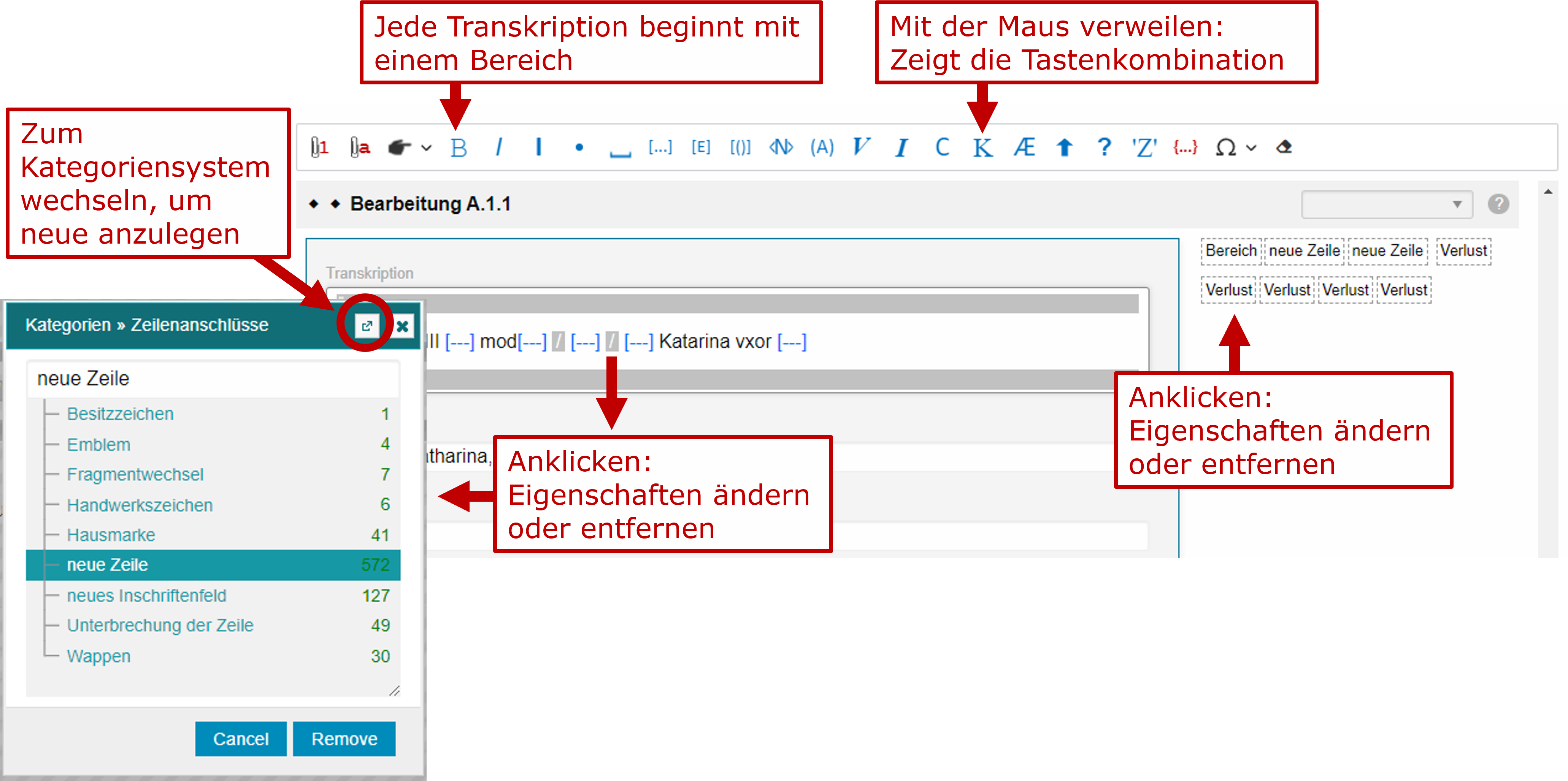
See the following images for an overview about the basic editing features.
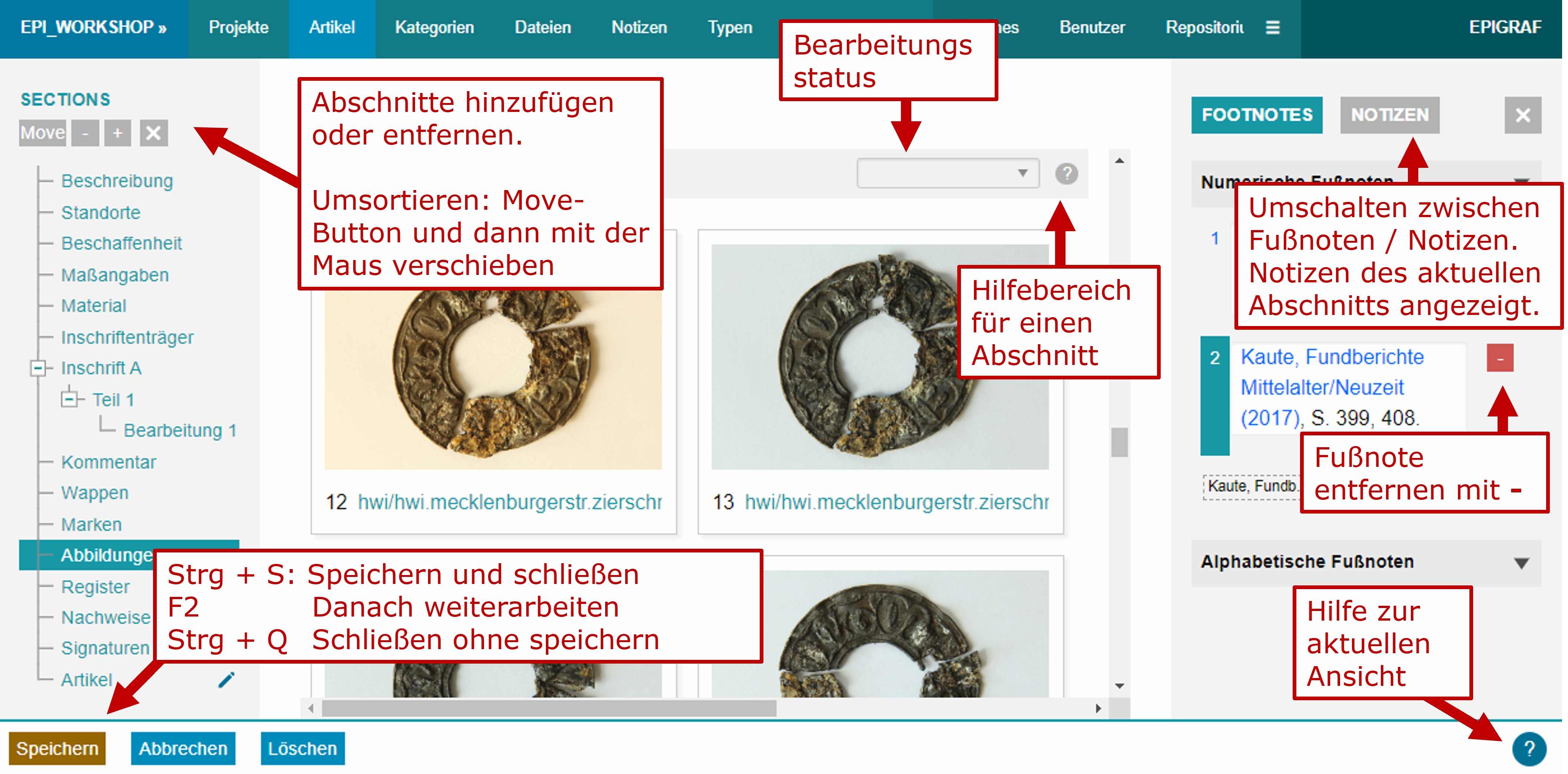
Text is annotated using a toolbar or corresponding keyboard shortcuts. Based on the database configuration, annotations can be linked to categories.
Date values
Dating fields are used to store natural language dating of objects in a structured manner.
Dates must be entered according to defined patterns, see the examples below. When entering a date, Epigraf parses and normalises upper and lower case, spaces and selected abbreviations. Dates can appear as simple dates (e.g. 1520) or as ranges (e.g. 1520-1522). Multiple dates are separated by a comma (e.g. 1520, 1522) or by "or" (e.g. 1524 or 1525).
From the value, a range consisting of start and end year is derived from the most recent and the oldest single date. The range is used for search functions.
Further, a sort key are generated from the oldest date found in the value. The following rules apply to the sort key:
- More precise dates come before less precise dates
- Older dates come before more recent dates
When entering fuzzy dates, the order cannot always be clearly determined by the two rules. In these cases the following list can be used as a guide. Please note: The table shows sortkeys generated by version 4 of the dating algorithm. We refined the algorithm, the table will be updated soon.
| Order | Dating | Normalised dating | Start year | End year | Sortkey |
|---|---|---|---|---|---|
| 1 | 3 v. Chr. | 3 v.Chr. | -3 | -3 | -0003AAA00000000A4 |
| 2 | 1200 v. Chr. - 1. Jh. v.Chr. | 1200 v.Chr.–1.Jh. v.Chr. | -1200 | -1 | -0100BBE-8800AABA4 |
| 3 | 3 n. Chr. | 3 | 3 | 3 | 00003AAA00000000A4 |
| 4 | 800 v. Chr. - 1. Jh. | 800 v.Chr.–1.Jh. | -800 | 100 | 00100BBE-9200AABA4 |
| 5 | 1200 | 1200 | 1200 | 1200 | 01200AAA00000000A4 |
| 6 | vor 1200 | vor 1200 | 1175 | 1200 | 01200AAB00000000A4 |
| 7 | um 1200 | um 1200 | 1190 | 1210 | 01200AAD00000000A4 |
| 8 | nach 1200 | nach 1200 | 1200 | 1225 | 01200AAF00000000A4 |
| 9 | Anfang 16. Jh | A.16.Jh. | 1501 | 1524 | 01501ABF00000000A4 |
| 10 | 1410 - Anfang 16. Jh | 1410–A.16.Jh. | 1410 | 1525 | 01501BBF08590AABA4 |
| 11 | 1520 | 1520 | 1520 | 1520 | 01520AAA00000000A4 |
| 12 | 1520 ? | 1520? | 1520 | 1520 | 01520AAA00000000B4 |
| 13 | 1520 - 22 | 1520–1522 | 1520 | 1522 | 01522BAA08480AABA4 |
| 13 | 1520 - 1522 | 1520–1522 | 1520 | 1522 | 01522BAA08480AABA4 |
| 14 | 1525 oder 1524 | 1525 oder 1524 | 1524 | 1525 | 01524BAA08475AAAA4 |
| 15 | 1525 | 1525 | 1525 | 1525 | 01525AAA00000000A4 |
| 16 | 1.V. 16. Jh | 1.V.16.Jh. | 1501 | 1525 | 01525ABA00000000A4 |
| 18 | 1.D. 16. Jh | 1.D.16.Jh. | 1501 | 1533 | 01533ABA00000000A4 |
| 19 | 2.V. 16. Jh | 2.V.16.Jh. | 1525 | 1550 | 01550ABA00000000A4 |
| 20 | 1.H. 16. Jh | 1.H.16.Jh. | 1501 | 1550 | 01550ABB00000000A4 |
| 21 | Mitte 16. Jh | M.16.Jh. | 1525 | 1575 | 01550ABC00000000A4 |
| 22 | 2.D. 16. Jh | 2.D.16.Jh. | 1533 | 1566 | 01566ABA00000000A4 |
| 23 | 3.V. 16. Jh | 3.V.16.Jh. | 1550 | 1575 | 01575ABA00000000A4 |
| 24 | Ende 16. Jh | E.16.Jh. | 1575 | 1600 | 01600ABA00000000A4 |
| 25 | 4.V. 16. Jh | 4.V.16.Jh. | 1575 | 1600 | 01600ABB00000000A4 |
| 26 | 3.D. 16. Jh | 3.D.16.Jh. | 1566 | 1600 | 01600ABC00000000A4 |
| 27 | 2.H. 16. Jh | 2.H.16.Jh. | 1550 | 1600 | 01600ABD00000000A4 |
| 28 | 16. Jh | 16.Jh. | 1501 | 1600 | 01600ABE00000000A4 |
| 29 | 15.-16. Jh | 15.–16.Jh. | 1401 | 1600 | 01600BBE08500BEBA4 |
| 30 | Anfang 17. Jh | A.17.Jh. | 1601 | 1625 | 01601ABF00000000A4 |
Geographic coordinates
Items and properties containing geographic coordinates can be displayed on a map. You can either store coordinates directly in an article or choose a property with coordinates, or combine both options. The fields must be configured as geodata fields by an administrator.
For example, you can use a category system to manage places and locations. If you geolocate a place in the categories, you can refer to the category in an article item. But what if the place is a complex building consisting of several parts, such as a monastery, and the coordinates are not specific enough? Additionally, to locate the specific position within the building complex, you may refine or overwrite the coordinates directly in a geodata field of an article item.
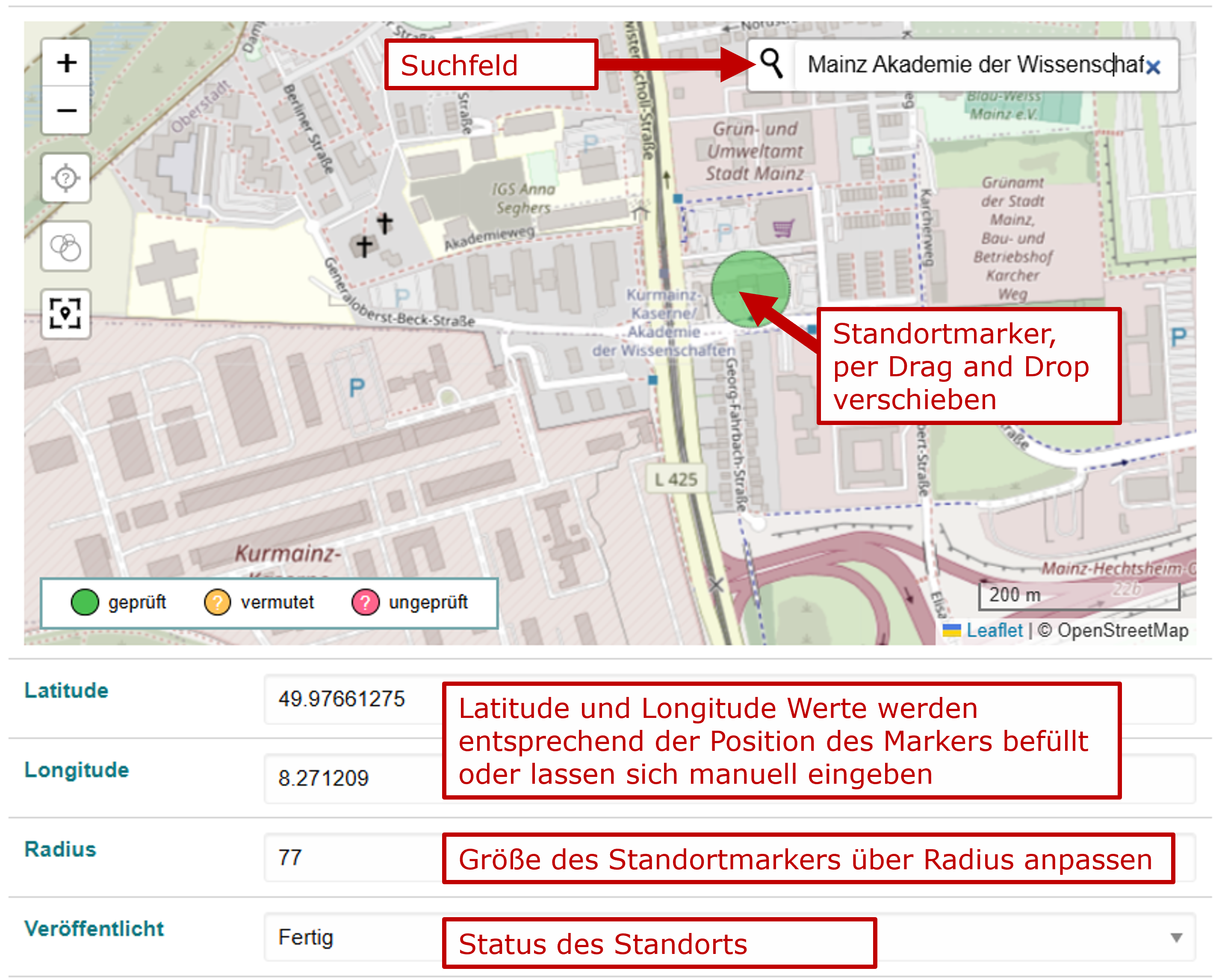
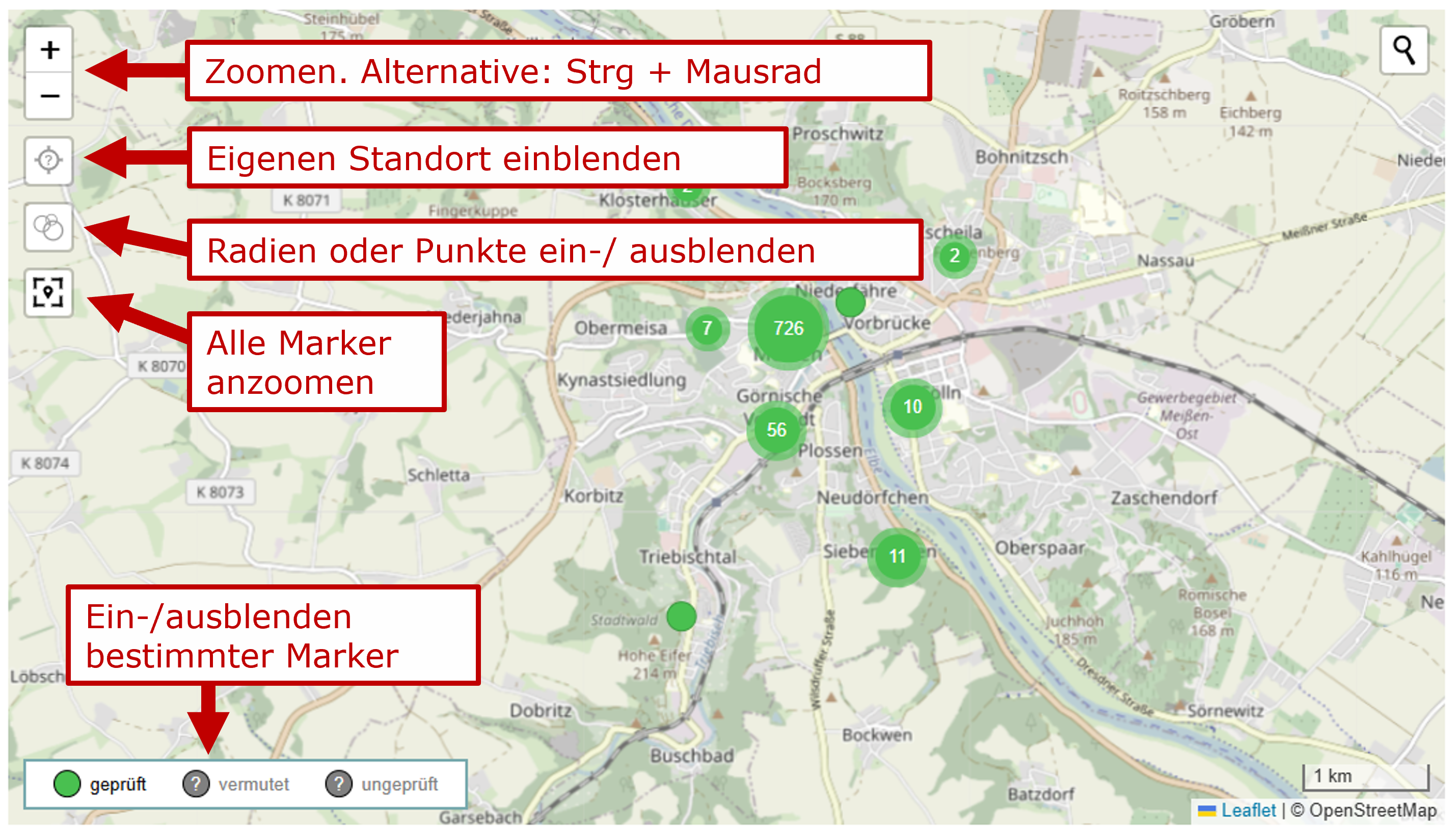
Once configured, you use the map view to change the coordinates. The location marker can be moved to the appropriate position on the map using drag and drop with the mouse, and the corresponding latitude and longitude values are determined automatically. Alternatively, known latitude and longitude values can be entered directly into the respective fields. The size of the location marker can be adjusted using the radius field. Note: The radius of the markers is only visible if the radius view has been activated beforehand using the button on the left side of the map.
The search field can be used to search for locations or buildings. In category systems, the search field is pre-filled with the category lemma. Press Enter to start the search. If a matching result is selected from the search suggestions, it is marked on the map with a blue box. As soon as you confirm the box by clicking on it, the marker moves to the corresponding position and the values for latitude, longitude, and radius are automatically adjusted.
The publication status of the item or category is used to indicate the reliability of coordinates:
- 0 = drafted = unvalidated coordinates.
- 1 = in progress = assumed coordinates, for example, from an automatic geocoding service
- 2 = complete = validated coordinates, either manually entered or derived from other reliable data such as Geonames
- 3 = published = validated coordinates that should be displayed on public maps
- 4 = searchable = validated coordinates that should be displayed on public maps
Note: By choosing the publication status, the whole item or category is set to this status. In consequence, the property or item will be published or unpublished when it is transferred to a public database.
Special characters
You can use the standard ways of your operating system to enter special characters. Windows systems provide the Windows Character Map. For example, you can locate the Greek alphabet in the extended view by grouping by "Unicode subrange". For Windows users, an alternative is BabelMap.
Particularly frequently used special characters can be added to the Epigraf toolbar by administrators.
Batch Processing
Batch processing enables you to process multiple items automatically. It is primarily used for maintenance work and can be accessed via the Mutate button. After selecting the items, choose a task.
- Assign IRIs: Each Epigraf entity is identified by a unique IRI.
Epigraf IRIs contain a table name, the entity type and an IRI fragment identifying the entity.
For articles, the IRI fragment should contain the database name and the article ID.
The IRI fragment should always remain stable, even when an article is transferred to another database and gets a new ID.
By default, after new articles have been created, the IRI fragment field (
norm_iri) is empty. When accessing (or transferring) an article without an IRI fragment, a virtual IRI is generated from the database name and the article ID. In the rare case that you need fixed IRI fragments in the database, you can permanently store them by the "Assign IRIs" task. - Assign article number: A new signature entity is inserted at the first position in the "Signatures" section (sectiontype=signatures). The feature is used to number articles for publication. The new signature is a consecutive number, according to the order of the selected articles. At the same time, a reference to a selected literature title (propertytype=literature) is created.
- Assign project: The selected articles are moved to another project.
- Assign category: All selected articles are assigned to a category. You can use this feature to group articles and use the faceted search to select articles from different groups. Within each article, a "Collections" section (sectiontype=collections) is created if it does not already exist. Within the collection section, a collection item (itemtype=collections) is created and linked to the selected property.
- Copy articles: The selected articles are duplicated.
- Delete articles: The selected articles will be deleted.
- Publish articles: The publication state of selected articles will be set to a given value.
- Clean XML content: All xml fields are parsed and revised. You explicitly define a list of tags (tags must correspond to links or footnotes configuration types) to be revised. The step "Remove empty and nested child tags" first removes tags that are contained in the same tag type. For example, if a 'quot' tag contains a child 'quot' tag, the child element is removed, but the content is kept. Thus, the content is still annotated with the parent tag. Second, all empty tags of the given type are removed. For example, if 'quot' tags are used to mark quotated text, empty tags don't make sense as they mark nothing. The step "Remove tags, keep content" removes the annotation without deleting its content.
- Generate items: Automatic summaries, classification and annotations are generated using an LLM. This features requires to configure an LLM service (usually https://databoard.uni-muenster.de).
- Rebuild dates index: The date key is updated for the selected articles. The date key is used to sort articles according to natural language and fuzzy dating (e.g. 15th century, 1433).
- Rebuild fulltext index: The full text index for the selected articles is updated. You should update the index after the configuration for the full-text search has been changed.
- Rebuild section order: In case the section hierarchy is corrupt, you can repair it by rebulding the section order.